Adding a different ring plan for specific day, because it’s different from the rest of the workdays

***Scenario 1 if Friday time is the only one changing***

Log into switch and go to Ring Plans.  Now you will probably need to create a new Ring Plan for Friday so you will need to click on the Green Plus Sign. A window should pop up asking you to name the new ring plan, which for this one I would name it Friday. Once you have created the Friday ring plan you are going to click on it so that it’s highlighted and then you are going to press the up arrow to put it right below day but above night. While the Friday ring plan is highlighted you want to set the Time Range and Day of the week. Select the time to start and close and on the day of the week both drop downs will be set to Friday. When this has been set you will need to highlight the Day plan and change the day of the week from the first drop down being Mon and the second being changed from Fri to Thurs. Once change is made hit apply save and make sure to notate the ticket number and what you did.
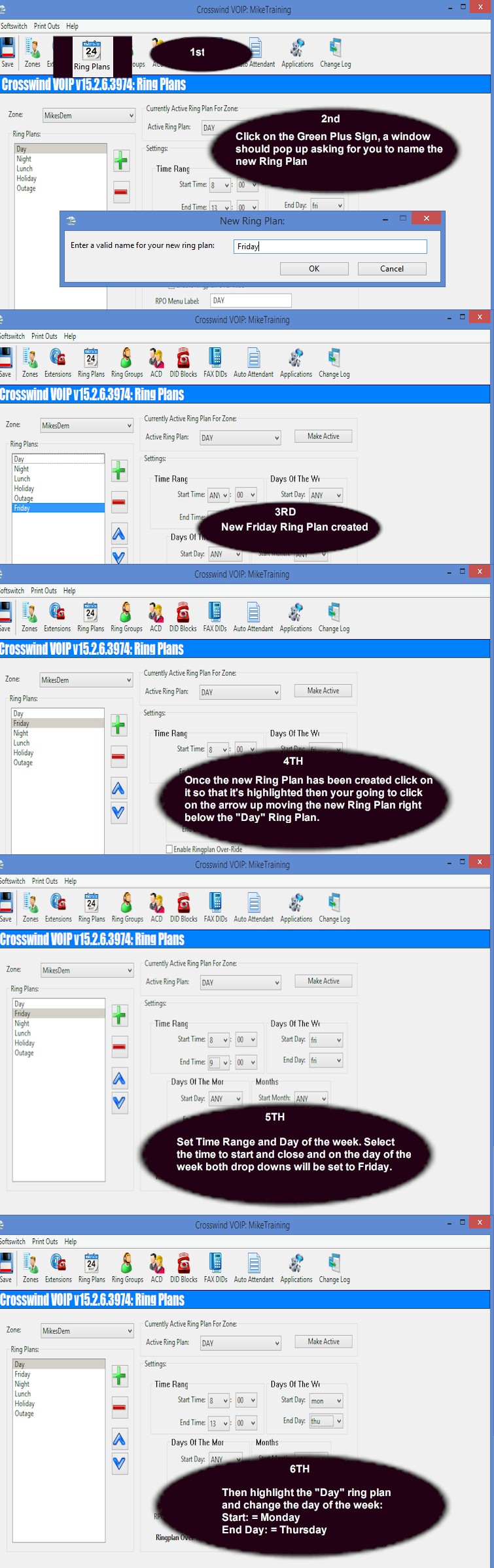
Adding a different ring plan for specific day, because it’s different from the rest of the workdays

***Scenario 2 Both Friday and Mon-Thurs hours of operations change***

Log into switch and go to Ring Plans. Now you will probably need to create a new ring plan for Friday so you will need to click on the Green Plus Sign. A window should pop up asking you to name the new ring plan, which for this one I would name it Friday. Once you have created the Friday ring plan you are going to click on it so that it’s highlighted and then you are going to press the up arrow to put it right below day but above night. While the Friday ring plan is highlighted you want to set the Time Range and Day of the week. Select the time to start and close and on the day of the week both drop downs will be set to Friday. When this has been set, highlight the day plan and change the day of the week from the first drop down being Mon and the second drop down being changed from Fri to Thurs. Then in the Time Range, change the start and end times. Once change is made hit apply Save and make sure to notate the ticket number and what you did.

For in-depth over view of extension
Change time for hours of operation

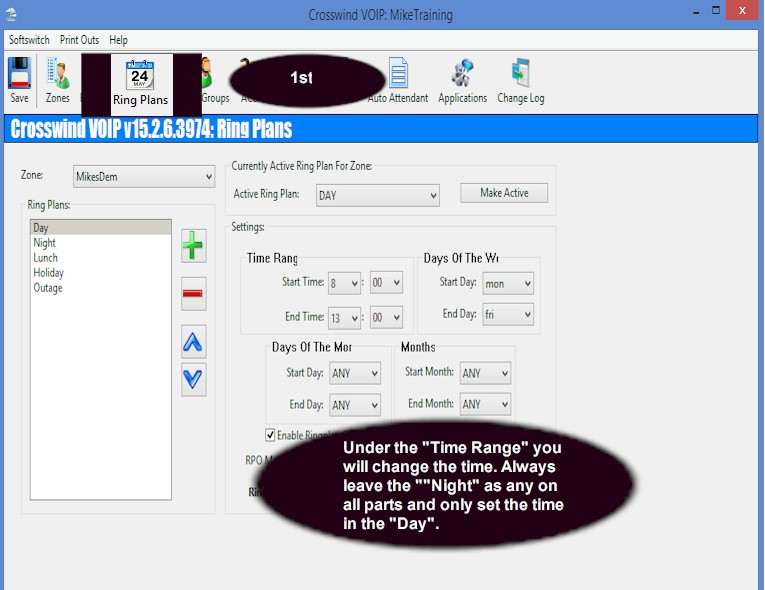
Log into switch and go to Ring Plans.                                                                                                                               Under the Ring Plan page you need to select the plan that you need to change. Under the Time Range you will change the time. ***We always leave the Night as Any on all parts and only set the time in the Day so this way if you have a Holiday or something special plan that has to be made for a certain day or event time no matter what as long as night is below it in the line up it will roll to that automatically. Save us time to when making changes in Ring Plans***

Change time for hours of operation

For in-depth over view of extension

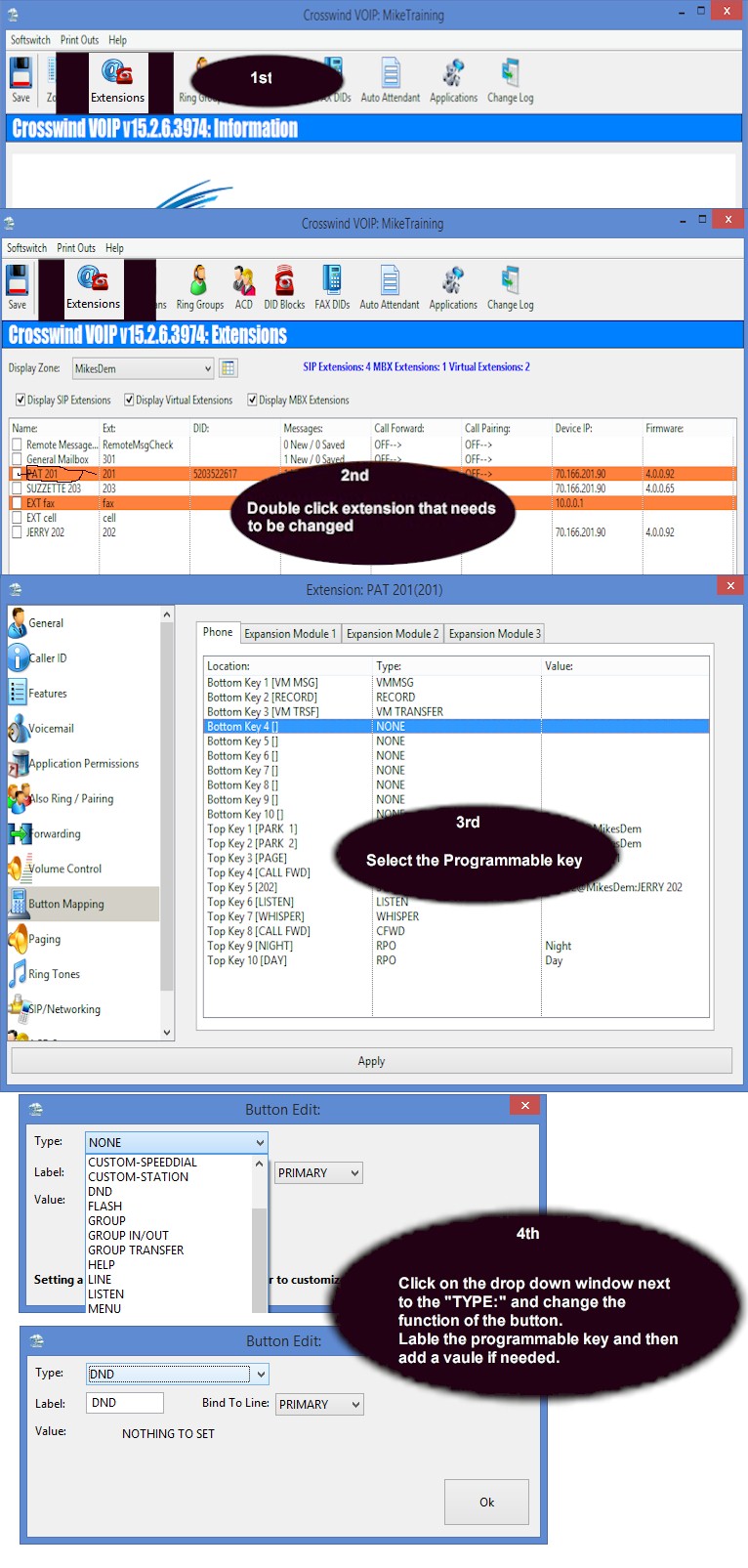
Change the way buttons are set up

Log into switch and go to Extensions.                                                                                                                                Find the Extension that needs to be changed and double click on it. Go to Button Mapping and here depending on what need to be changed you will select the Programmable Key by double clicking and then click on the Type and change the function of the button, Label programmable key and then add the Value if needed. Once change is made hit apply

Change the way buttons are set up

Save and make sure to notate the ticket number and what you did.

For in-depth over view of extension
Employee out of the office, messages sent to another extension

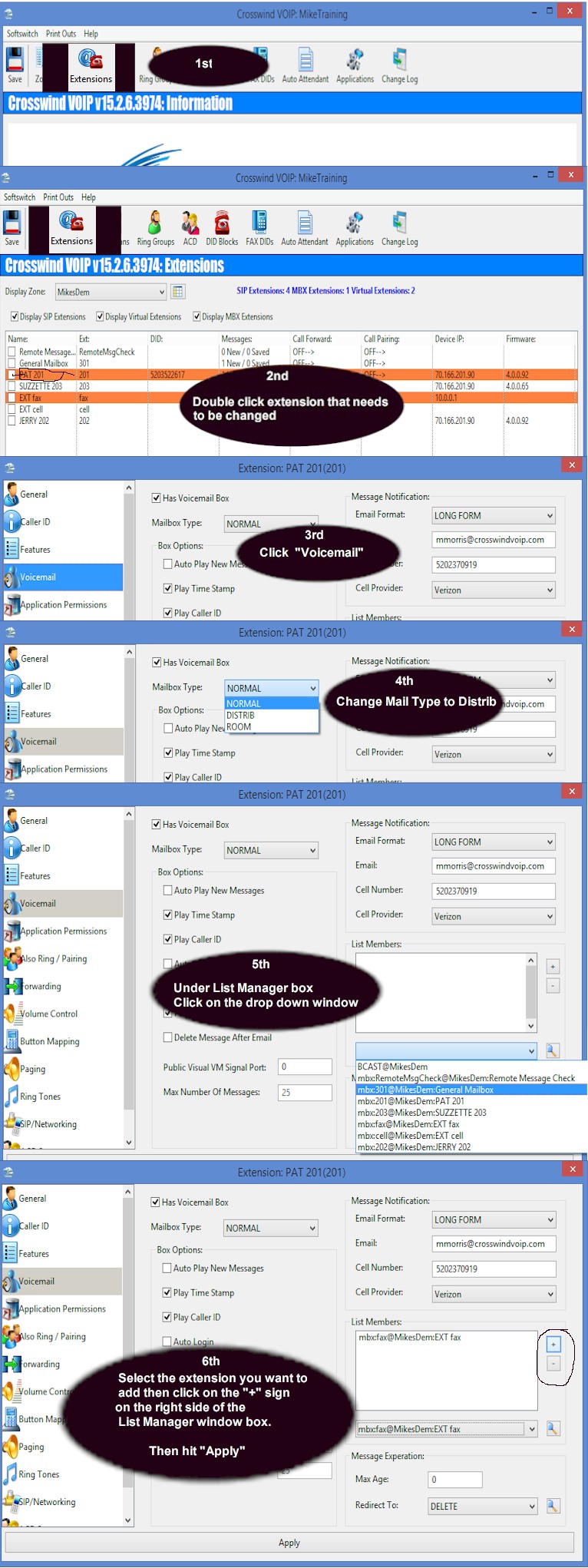
Log into switch and go to the Extensions. Find the extension and double click on it.   ***Scenario 1 if they want it to go to the other extension right away***   Go to Voicemail and change Mailbox Type to Distrib. Under List Member you will need to click on the drop down window and select extension you want to add then click the plus sign on the right side of the List Member Once change is made hit apply

Employee out of the office, messages sent to another extension #1

***Scenario 2 if they want it to go after a couple of days or 1 day etc…*** Go to Voicemail and under the Voicemail Expiration you will see Max Age here is where you set the number of days before sending it to another mailbox. Where it says Redirect To you will select the drop down window and select the mailbox you want it to be sent to. Once change is made hit apply

Employee out of the office, messages sent to another extension #2

Save and make sure to notate the ticket number and what you did.

For in-depth over view of extension

General mailbox messages also go to other extensions

Log into switch and go to Extensions. Find the mailbox extension and click on it.    Go to the Voicemail and change Mailbox Type to Distrib. Under List Member you will need to click on the drop down window and select the extension you want to add then click the plus sign on the right side of the List Member window.       Once change is made hit apply

General mailbox messages also go to other extensions

Save and make sure to notate the ticket number and what you did.

For in-depth over view of extension