Outage: internet is down and so are our phones

Check any alerts that are in the Manager on the Dashboard under Alerts & Notices. If nothing there then please call internet provider and go to Tech Support. If they do find any issues please make note in our ticket system of the ticket number is with the internet company and the eta of issue. Please also make sure to call customer and keep them updated and if not by calling then email.

Internet Lost

looking for internet               internet cut

For in-depth over view of extension

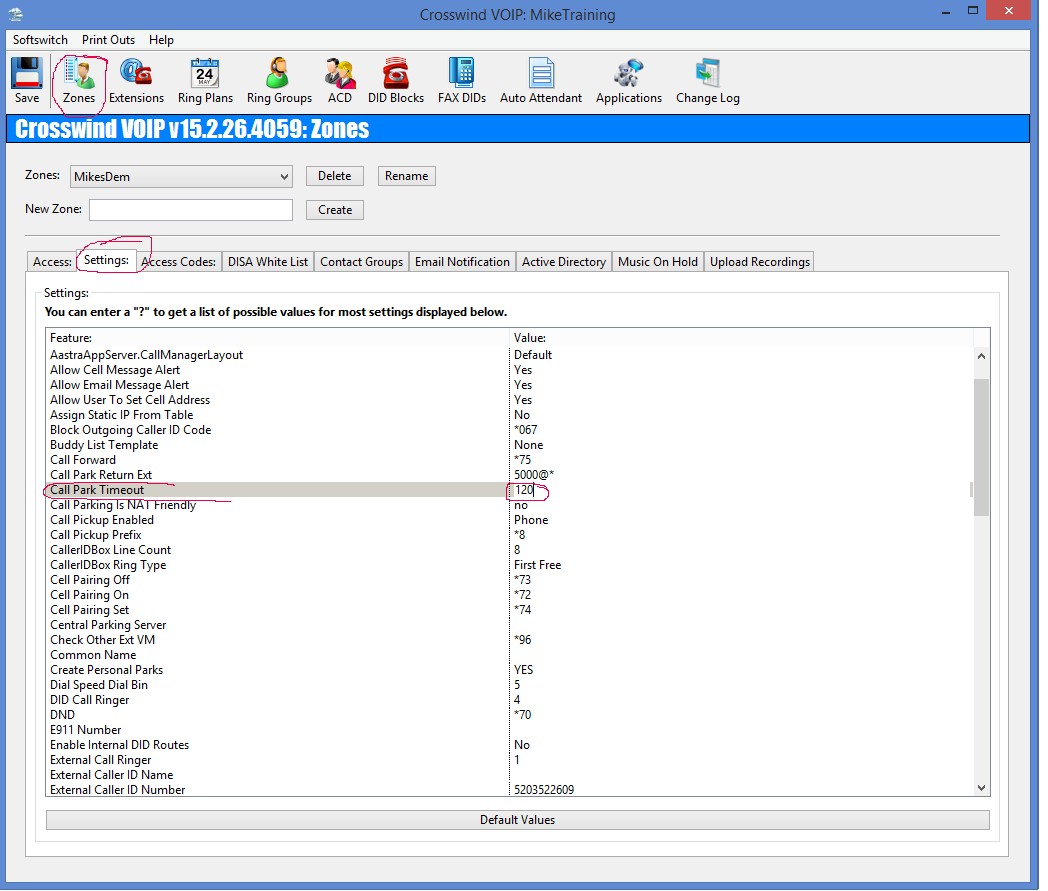
Changing the hold/park timer

Log into Switch and go into Zones.                                                                                                                                     From Zones you will need to select the Settings Tab and scroll down to where it says Call Park Timeout. Now this is measured by seconds, if they want two minutes for someone to wait on hold/park until it rings back then you would highlight this and click on the Value part and change the number from whatever it is to 120 as an example.

hold park timer

Save and make sure to notate the ticket number and what you did.

For in-depth over view of extension

Picking up park button sometimes takes a while to talk to the customer

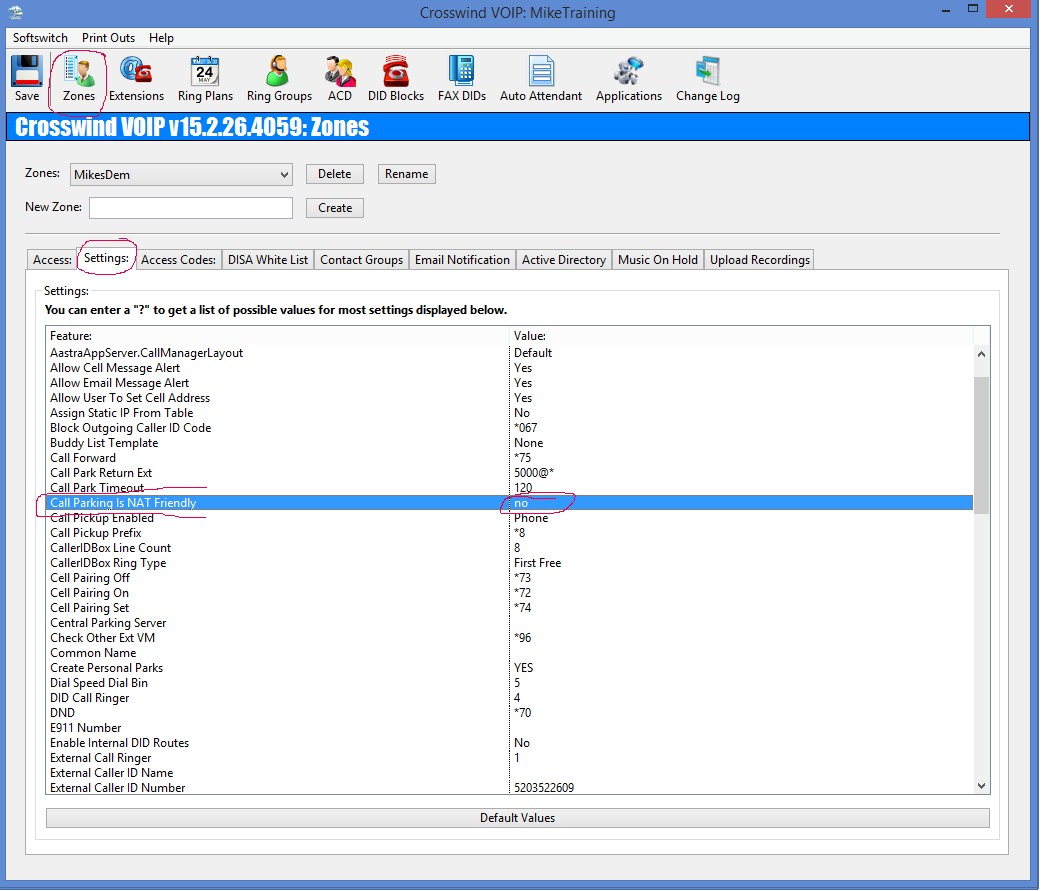
Log into switch and go to Zones.                                                                                                                                           Under Zones you will select the Settings tab. When in the Settings tab you will scroll down to where it says Call Parking Is NAT Friendly. You will highlight the Call Parking Is NAT Friendly by clicking on it and over to the right of it you will see no or yes. Now with the ones that get this super long delay you set that no to yes, this will take care of the delay when picking up the Park. Once change is made hit apply

call parking

Save and make sure to notate the ticket number and what you did.

For in-depth over view of extension

Phones did not roll over from night to day

Log into switch and go to Ring Plans. Select the Ring Plan and check the time on it, If time is wrong, change it and then save. If it’s right move on to next step. Verify the extensions that have access to the RPO Buttons. (Sometimes we find that when more than one person has the RPO buttons they can hit it accidentally) Make sure the time zone is correct and for this you will go to Zones and look for Time Zone. Also a good rule of thumb is that the light will flash if it’s in override mode so if they call and say the light was flashing it means someone in the office must of put it in override mode otherwise if it is solid then it is in schedule mode. Another thing to note is ring plan won’t roll over until the first call comes through.

rpo button

Save and make sure to notate the ticket number and what you did.

For in-depth over view of extension

Pick up another extension ringing when light is flashing

Go into switch and go to Extensions.  Double click on the Extension you want and go to the Features. When in Features you want to make sure that the box next to Allow Call Pick Up is checked. If it’s not checked please check box.   Once change is made hit apply

pick up other extension

Save and make sure to notate the ticket number and what you did.

For in-depth over view of extension

Set up Auto Announce on all the phones

***Scenario 1 they want the mute off***

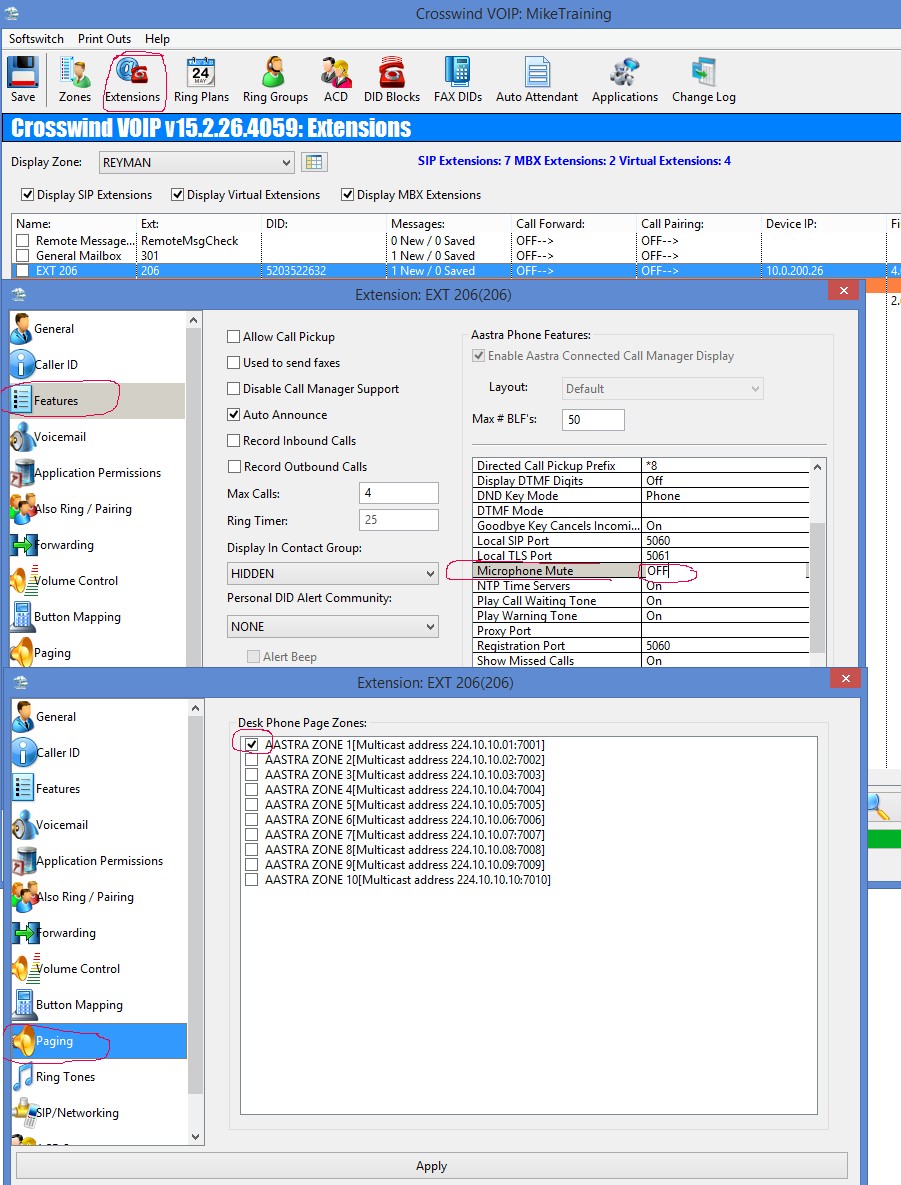
Log into switch and go to Extensions. Find the extension you want to start with double click and go to the Features and check the box next to Auto Announce then on the right hand side on the same window you will see a scroll down screen. Scroll down until you find Microphone Mute on the right side of it you will set it to Off. You will then go down to where it says Paging on the right side of the screen and click on it. Typically you select Aastra Zone 1 for every extension. Once change is made hit apply

Microphone Mute

Save and make sure to notate the ticket number and what you did.

***Scenario 2 they want the mute on***

Log into switch and go to Extensions. Find the extension you want to start with the double click and go to Features and check the box next to Auto Announce. You will then on the left of the window go to Paging and typically you will chose Aastra Zone 1 for every extension. Once change is made hit apply

senerial 2 auto anounce

Save and make sure to notate the ticket number and what you did.

For in-depth over view of extension

Voicemail Change extension, add mail box, add email,

Scenario 1 just change password

Log into switch and go to Extensions.  Right click on the extension and select Reset Mailbox Password. Another window will pop up and here is where you select a 4 to 6 digit password. Another window will pop up and state that password has been changed, hit okay. When letting the customer know about the password change make sure to tell them to change the password to something they will remember once they are in the mailbox.Once change is made hit apply

Changing voice mail password

Save and make sure to notate the ticket number and what you did

Scenario 2 just defaulting the mailbox

Log into the switch and go to the Extensions.

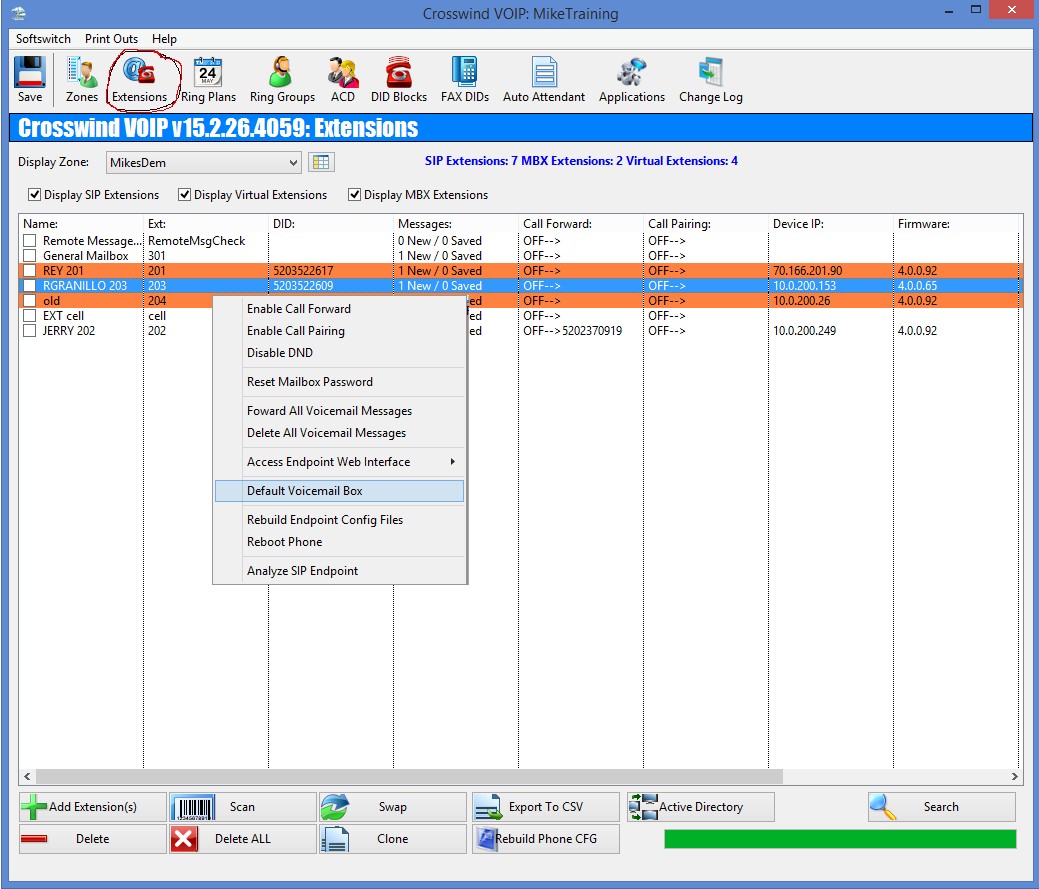
Right click on the extension you are trying to change. Click the Default Voicemail Box. Another window will pop up letting you know the mailbox has been defaulted just hit okay.  Once change is made hit apply

defaulting the mailboxSave and make sure to notate the ticket number and what you did.

Scenario 3  New Employee default mailbox and setting email

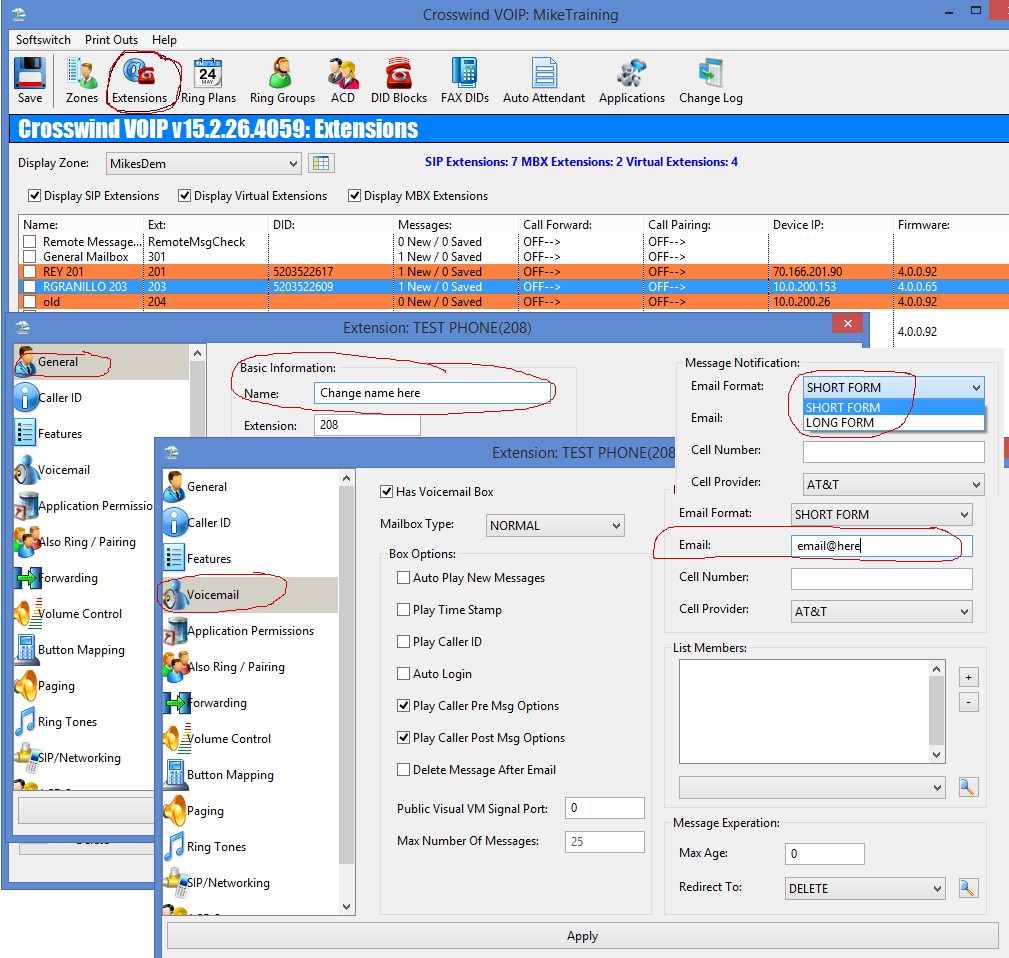
Log into switch and go to Extensions. Double click the extension you want to change and under the General you will change the name of the extension. Select the Voicemail and add and email address that need to be added. **Remember that the Short form is just an alert stating they have a voicemail & the Long Form sends a copy of the voicemail to the email address** Go to the Application Permissions and add an email address if they are using the communicator and randomly select the password. Hit Apply to save changes. Then right click the same extension and select the Default Voicemail Box. Once change is made hit apply

Voicemail Change extension, add mail box, add emailSave and make sure to notate the ticket number and what you did.

For in-depth over view of extension

Adding an extension to have calls rollover after first group of phones ring

Log into switch and go to Ring Groups. There will be a drop down window by Ring Groups, towards the left hand bottom of the page you will see another box that has Members in it. To the right side of the Members you will see two drop down windows. The second drop down is the one you want to select to find the extension you want to add to the list of Members. Once you have selected the extension then you will need to hit Add. Once change is made hit apply

Adding an Extension

Save and make sure to notate the ticket number and what you did.

For in-depth over view of extension

Instead of ringing the phones first, set up a menu in the Auto Attendant for people to select from

Log into switch and go to Auto Attendant.                                                                                                                      If new menu needs to be made then you will need to select new at the top and a window will pop up here is where you can name the menu.
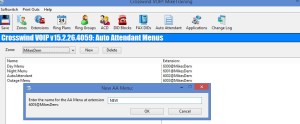
Auto Attendant.

Once you have created the new menu double click on it and a window will populate. You will need to make a prompt number unless one is already provided in the space. (Prompt number is what allows the customer to record a message and it be attached to that specific menu) If they want the customers to be able to search for extensions then make sure the box next to Search For Mailboxes & Extensions is checked but if they don’t then uncheck the box. Under the Max input try’s this allows us to set how many times a customer is allowed to try to select the options or repeat the message up to X amount of times.

prompt number

Under the Caller Input is where you will set the options up for this menu. Click the ADD and when the window pops up where it says Input you want to put what number will be pressed. When the number is set go to the Action here you will select between Dial, Mailbox, Menu, Dir or Goodbye.                                                                                                                                                                          *                         Dial when selected, means they will push X number (the number you set in Input) it will go to? Under Extension there is a drop down window and here you can select ring group, general mailbox, menu’s/AA, extensions, if they have virtual extensions you can select one or virtual remote message check. Under Extension it says Extension Number To Play To Caller, here is where you will want to set the extension (by default the extension should already be displayed in the box once one is selected), Now if they don’t want it to be read out then you need to remove the number from the box as well as checking the box next to Quite Transfer. If they want to have hold music play during the transfer then check the box next to Play MOH To Caller. If you do check the box for Play MOH To Caller then below that another drop down menu will be next to MOH Zone. Here is where you will select from which zone the MOH will come from. (Most companies will have just one MOH Zone and when they have more you need to verify which MOH they are wanting)

Caller Input

*             Mailbox when selected, the window will change and underneath the Action will be Mailbox Number. Here you can choose between general mailboxes and personal mailboxes.                                                                                                                                                                            *               Menu when selected a drop down next to menu will appear and once you click on the drop down window you can select which menu you want it to go to.

Menue

*                Dir when selecting this one you need to be sure with the customer do they want a directory with just first names, last names or both. If they want just the first names or last names then under Input is Directory and next to it is a drop down window where you select first names, last names. Now if the customer wants both the option for first names and last names this is what you will need to do:
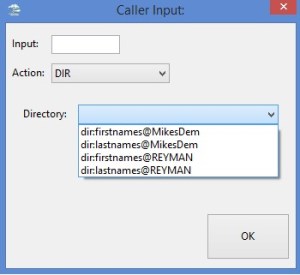
Directory

You will need to create another AA menu so you will go to the Auto Attendant and create a new menu. You will name it Directory and you will select add and make 1 go to first names and 2 go to last names then you will go back to previous menu and under whatever number they want their customers to dial you will make that a menu. Then once the window has changed you will select from the drop down window next to menu you will select the menu you created called directory. Now they will need the menu prompts for both the auto attendant/Day menu and Directory and any other menu they are using so they can record the messages.

ANOTHER aa MENUE

*                 Goodbye when selected means no matter what number or option it is the call will be disconnected.

Good By

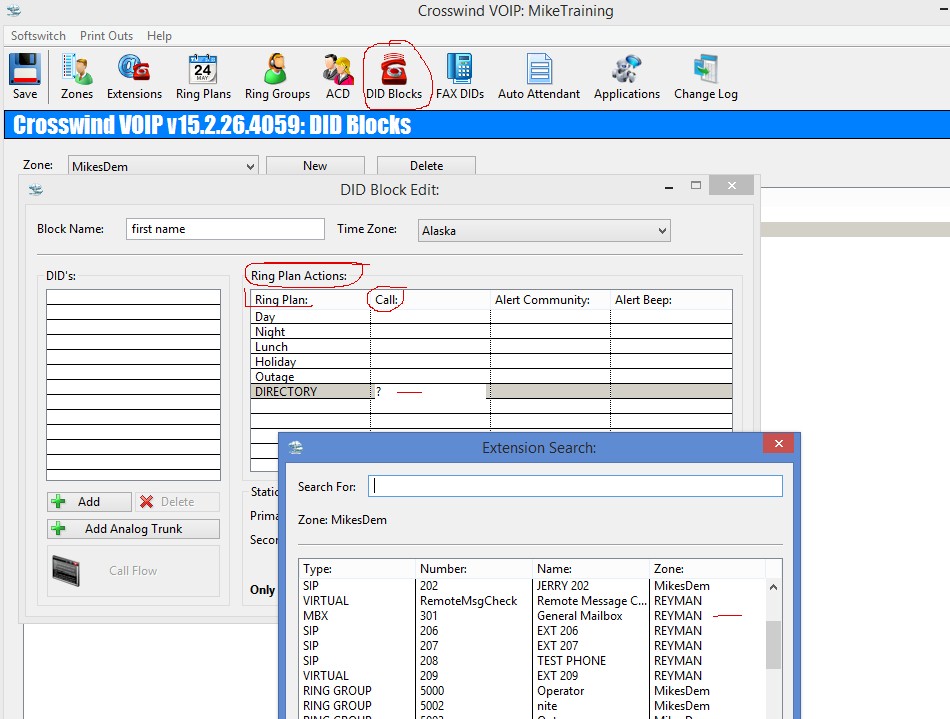
When you are done making the changes to the Menu’s you will need to go to DID Block, double click on the Main of the DID Block and another window should pop up. When the window comes up under the area that says Ring Plan Actions you will see Ring Plan and right next to it Call. Highlight the Call next to whichever Ring Plan you need to set it to and right click in that space, delete what is in space and type a question mark (?) another window will appear and you want to scroll down until you see the menu that the number needs to go to when called.

creating a ring plan starting with the DID BLOCK

Save and make sure to notate the ticket number and what you did.

For in-depth over view of extension

Making different Ring Plans four different hours of operations?

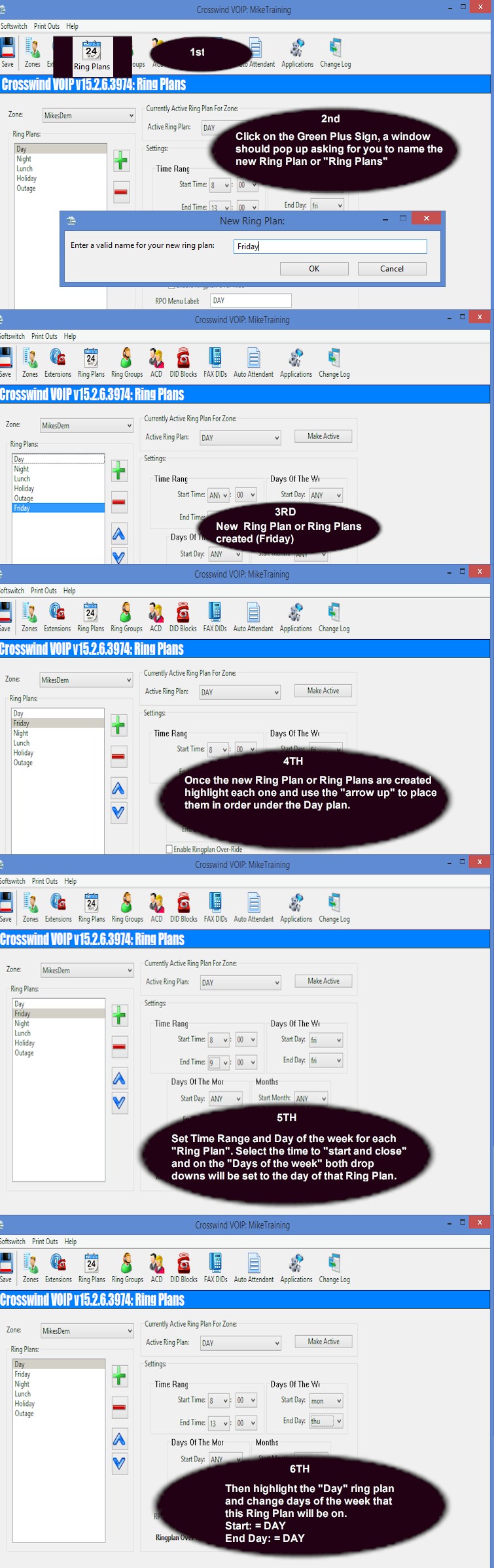
Log into the switch and go to Ring Plans.                                                                                                           So depending if they do need new ring plans you will need to press the Green Plus Sign to make a new ring plan, name as needed. Always make sure that depending on the days of the week they need to be in order down the line you can use the arrow keys to move the ring plans up or down. Make sure that the night is underneath them and set as ANY in all fields that way no matter what day it will roll over to night depending on what time is set for close.

Adding a different ring plan for specific day, because it’s different from the rest of the workdays

Save and make sure to notate the ticket number and what you did.

For in-depth over view of extension